

 Facebook
 Twitter
 LinkedIn

Keep important conversations, invoices, receipts, and attachments in the Box folders you already use. Save Emails to Box works directly in Gmail and Google Workspace email accounts, with options for a single message, a full project archive, or ongoing email backup.
Save, Share, and Back Up Gmail Emails to Box
Save Gmail Emails Directly to Box
Connect your Gmail and Box accounts to save emails without downloading files to your computer and uploading them again. The Chrome extension adds save buttons and Box folders inside Gmail, so you can organize messages where you read them. It works with personal Gmail and Google Workspace email accounts, and no Box desktop app is required.
Drag and Drop Emails into Box Folders
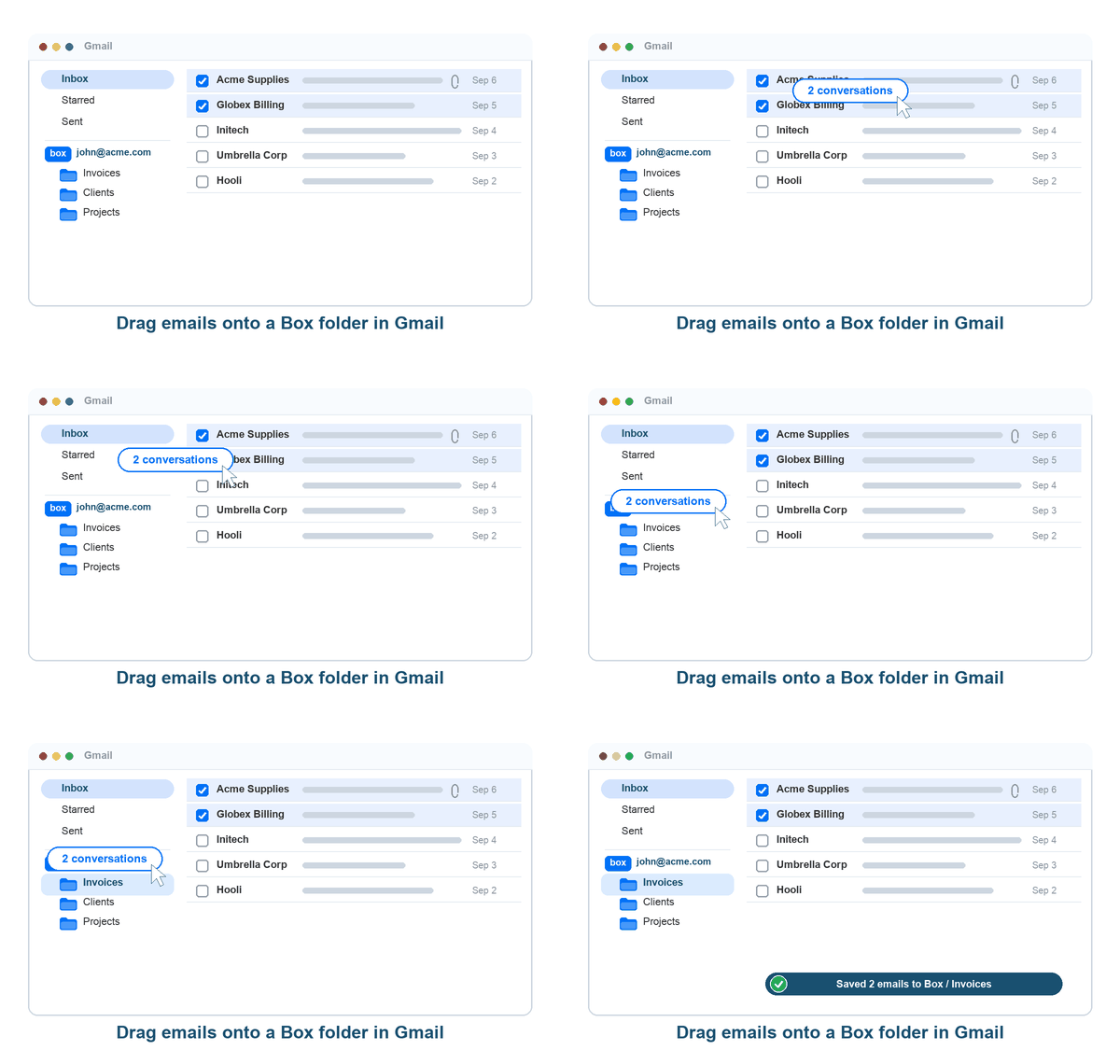
Select one or more emails in your Gmail message list, then drag them onto a Box folder in the sidebar. Saving starts with your saved export format and attachment settings. Drop invoices into an accounting folder or client conversations into a project folder without leaving Gmail.
Quick Save and Share Emails with a Link
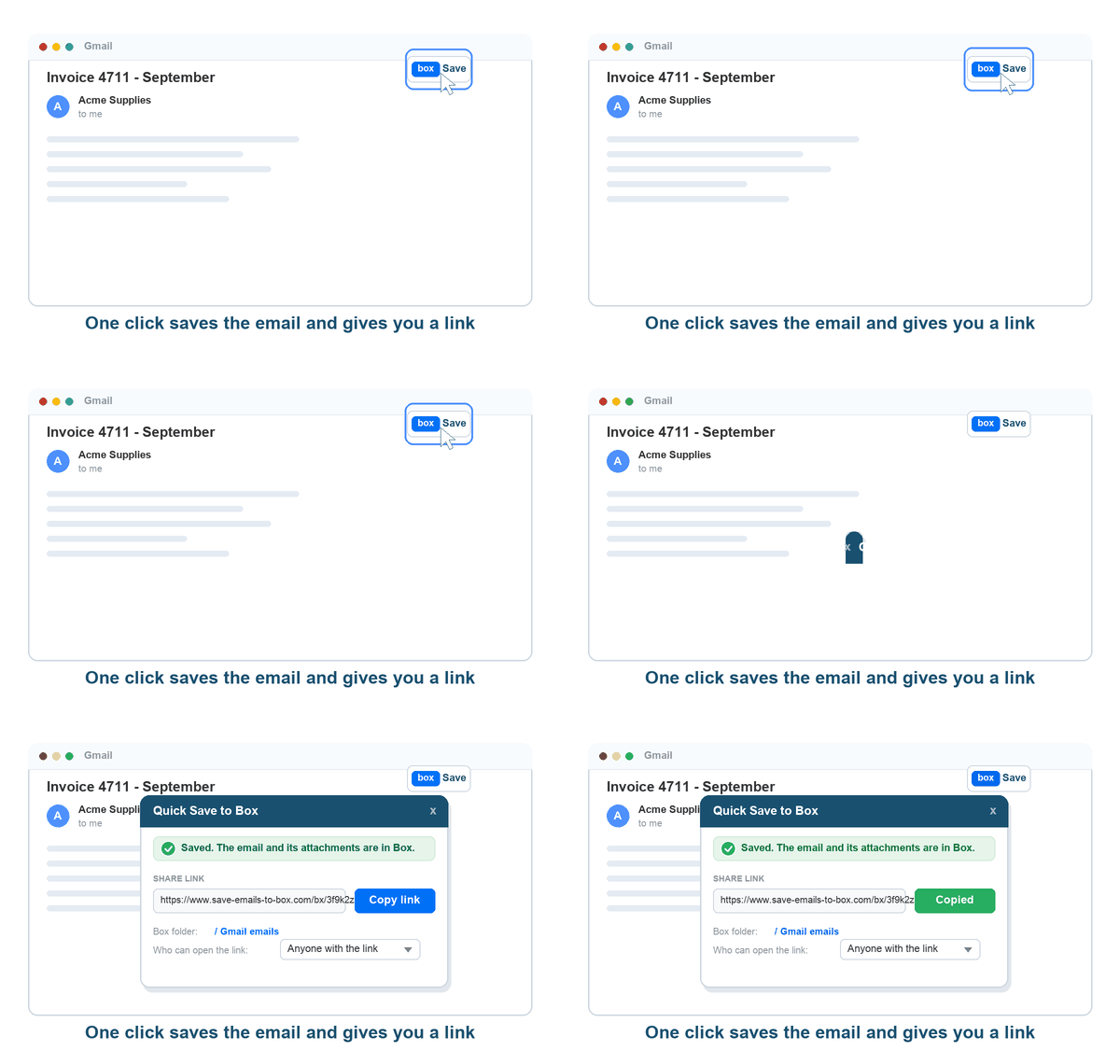
Hover over an email or open a conversation and click Quick Save to Box. The email is saved to your configured quick-save folder and a shareable link is created. Copy the link to send the saved email and attachments to colleagues or clients. You can change the destination folder and save options from the quick-save dialog.
Choose Who Can Open Your Shared Emails
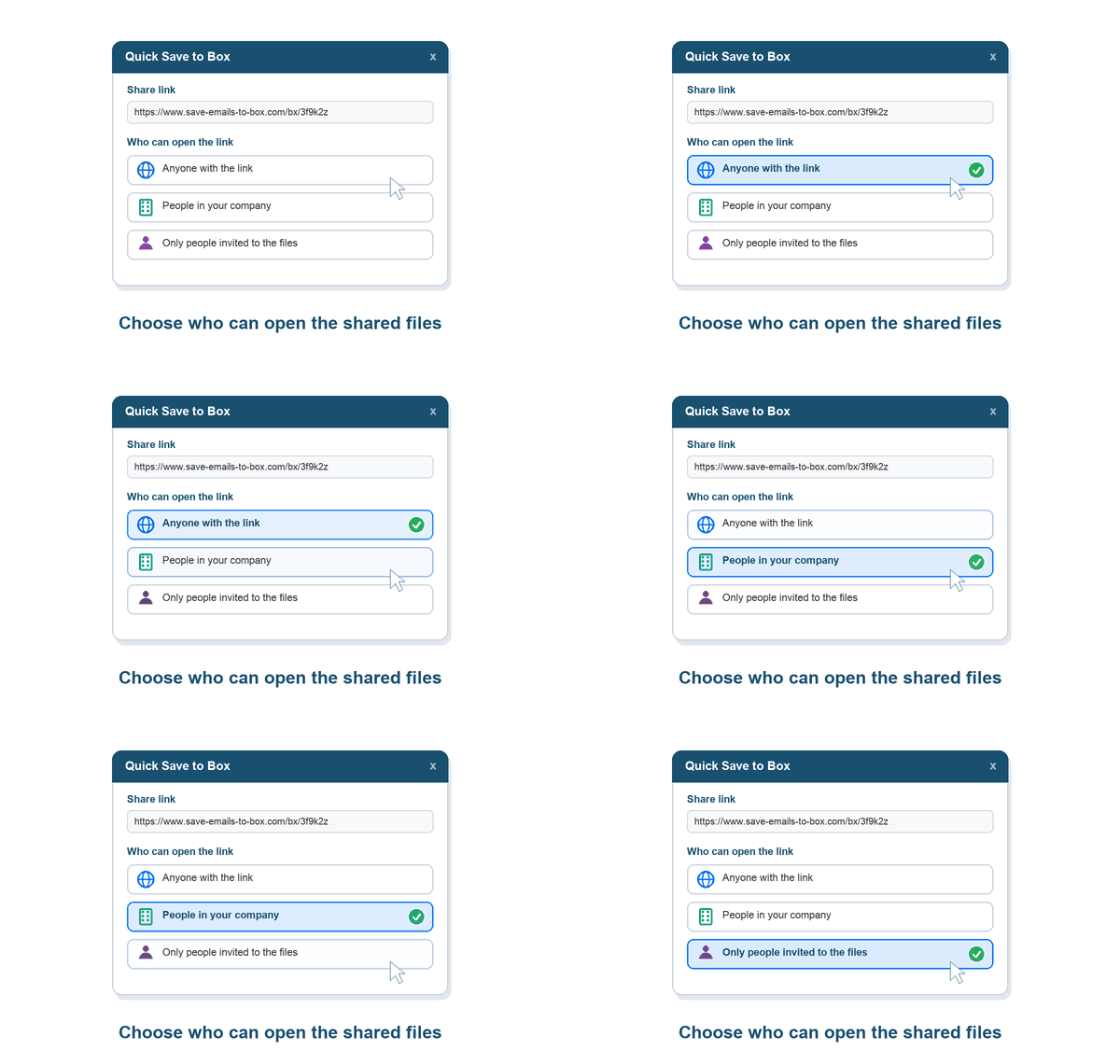
Use the quick-save dialog to choose who can open the saved files: anyone with the link, people in your company when your Box account supports that option, or people already invited to the files. Sharing follows the options and restrictions of your Box account, so you can select the access level appropriate for each conversation.
Save Multiple Emails and Gmail Search Results
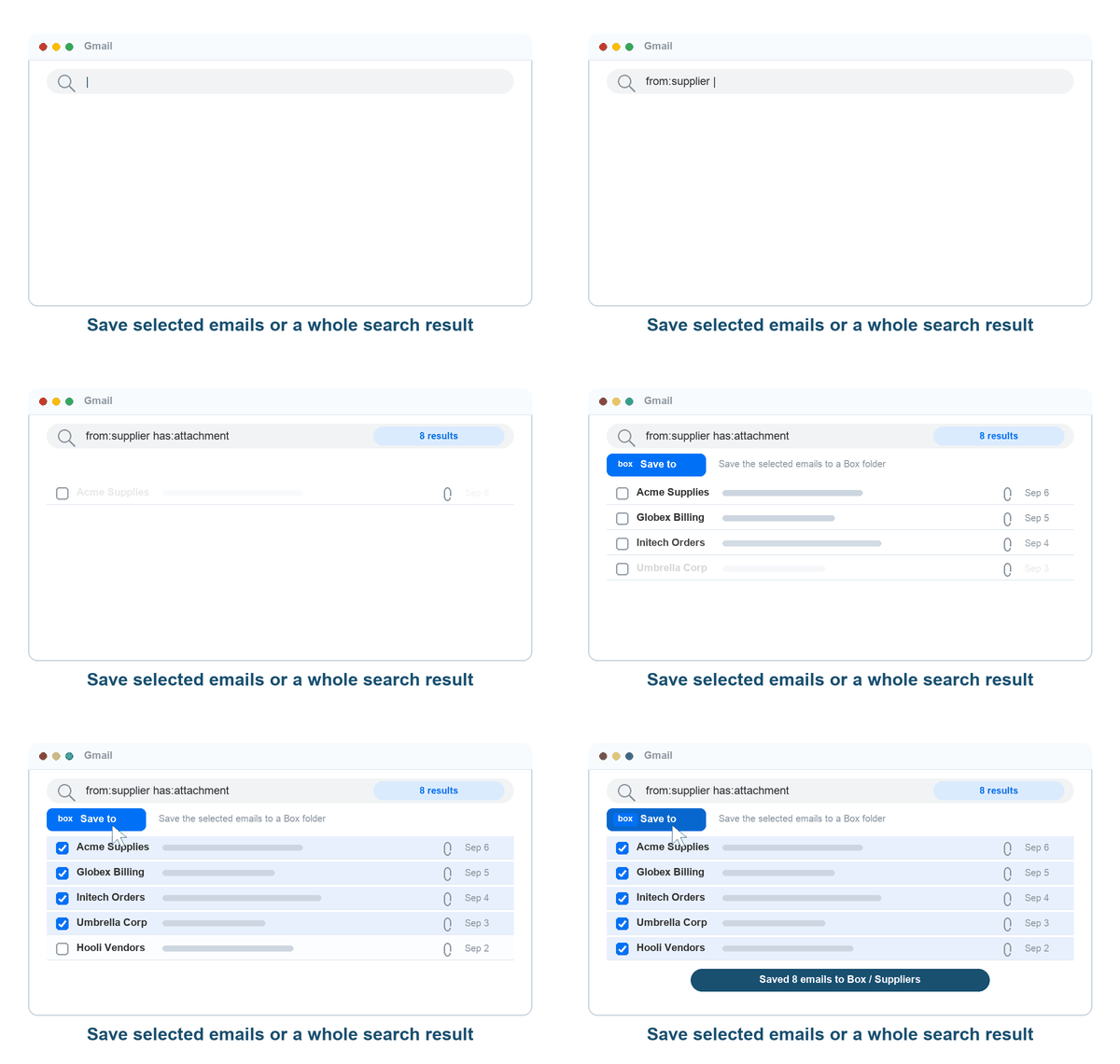
Select several emails and save them to Box in one batch, or use Gmail search to find messages by sender, recipient, date, subject, or other criteria. Export the matching results to a chosen folder without opening every email individually. This makes it easier to collect project updates, purchase records, or customer correspondence.
Archive Gmail Labels and Sub-Labels
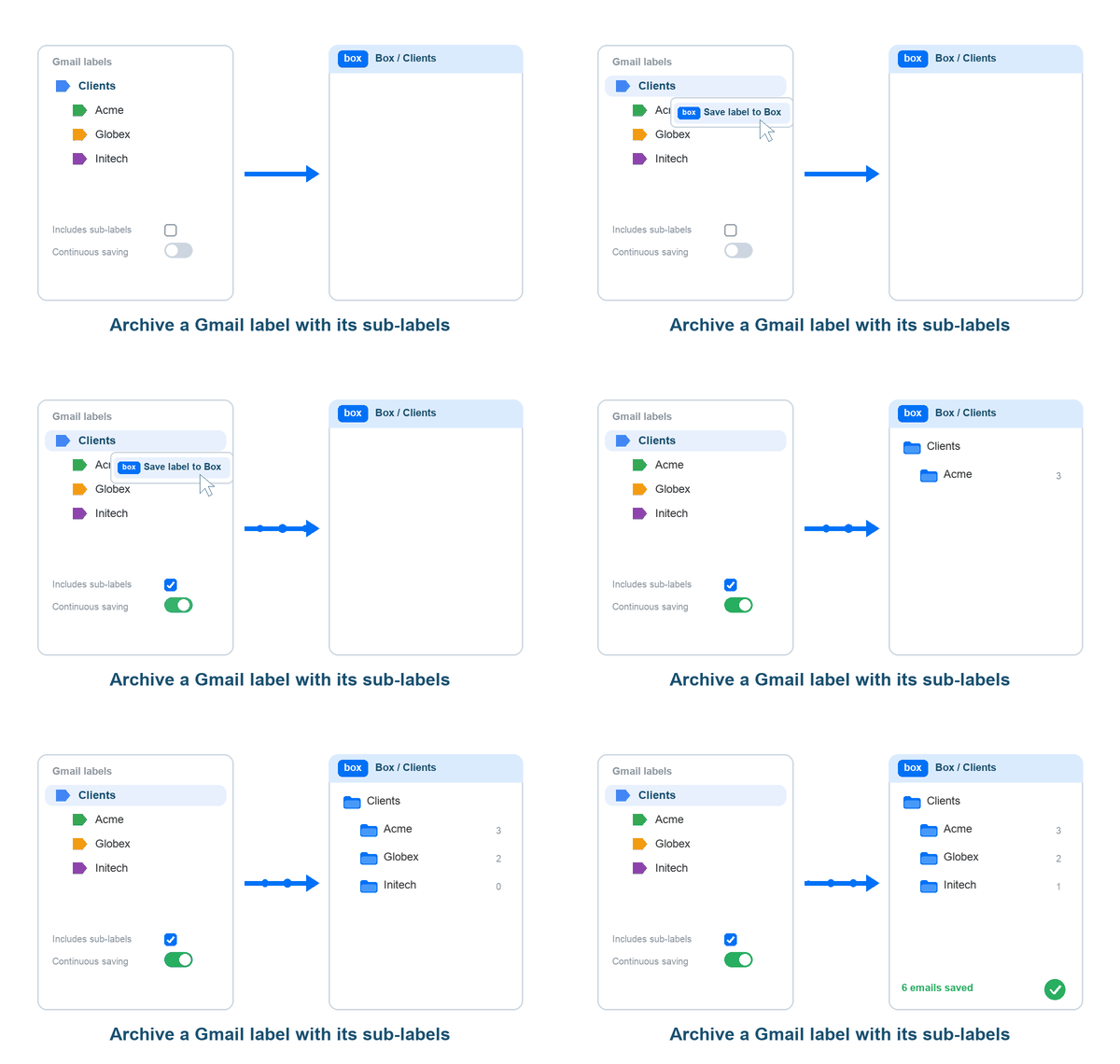
Save the emails from a Gmail label to a Box folder, including its sub-labels. Use labels to collect messages for a client, department, or project, then export the collection with your chosen format and attachment options. Choose a one-time archive or enable continuous saving for future messages.
Automatically Save New Gmail Emails to Box
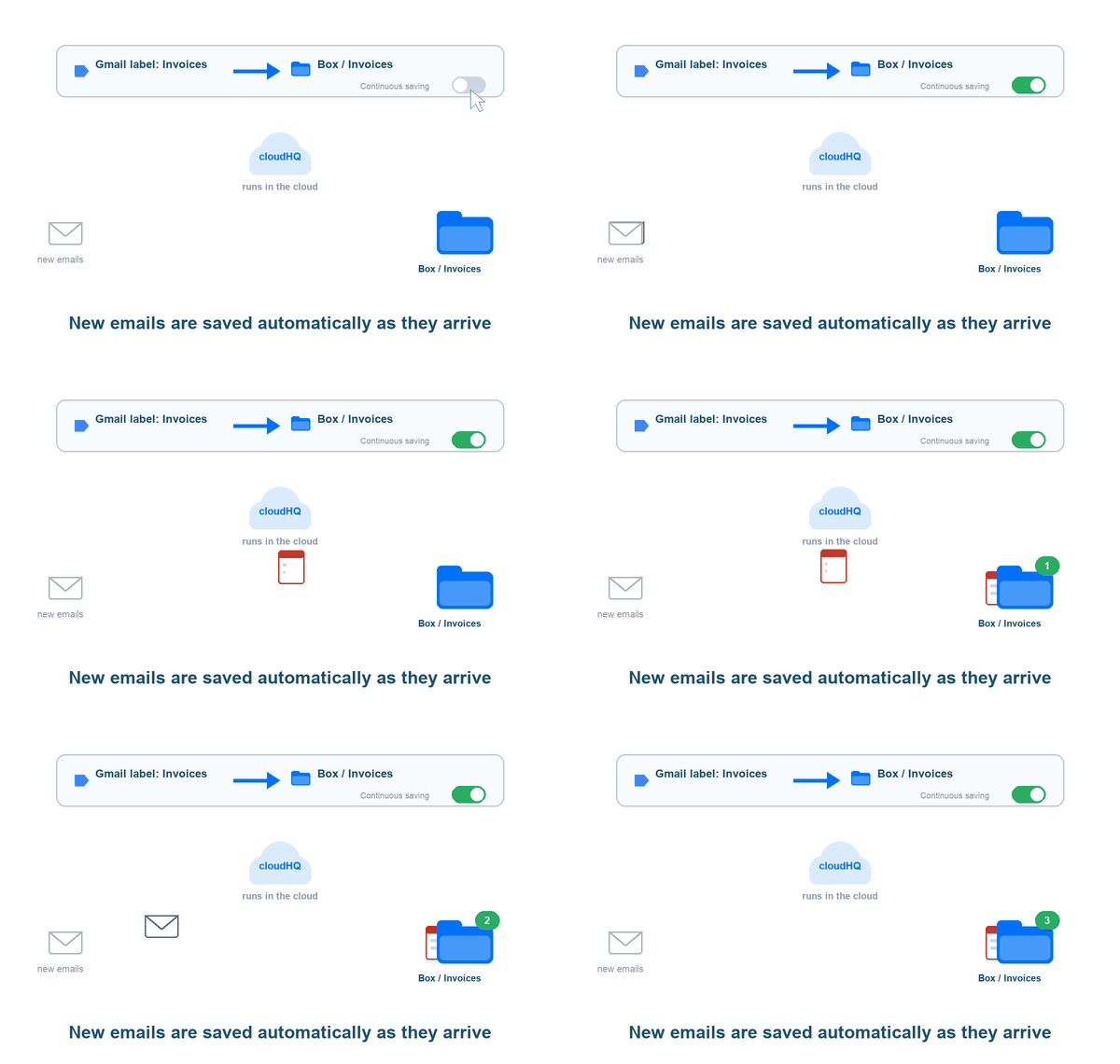
Connect a Gmail label or search filter to a Box folder and enable continuous saving. New matching emails are automatically saved as they arrive, helping you keep recurring invoices, orders, and project records up to date. Autosave runs in the cloud, so Gmail and the Box desktop app do not need to stay open.
Back Up Your Entire Gmail Mailbox to Box
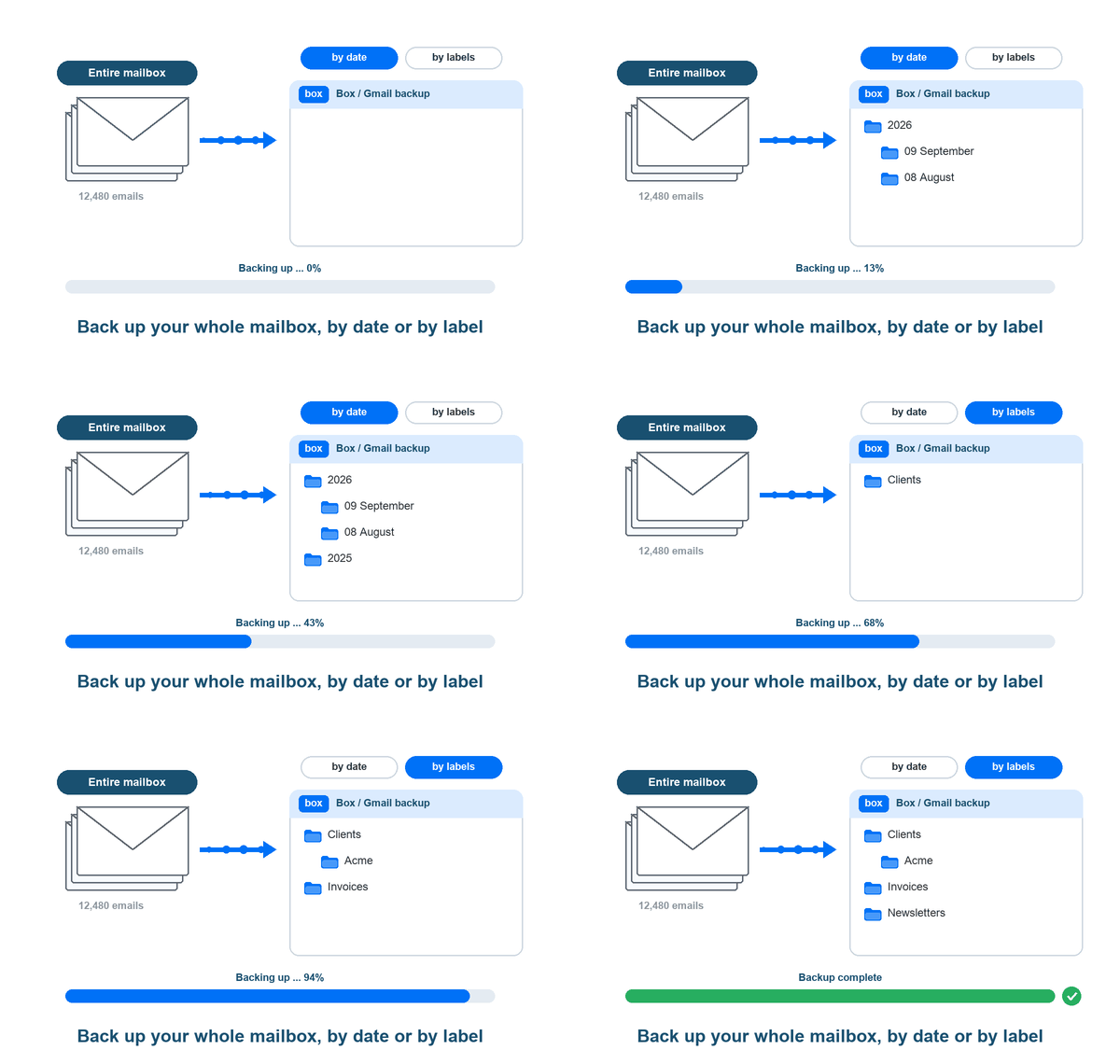
Keep a separate archive of your Gmail messages and attachments in Box. Premium users can back up the entire email account and organize the archive by date or by Gmail labels. Manage ongoing backup jobs from the dashboard and choose the export settings that fit your records.
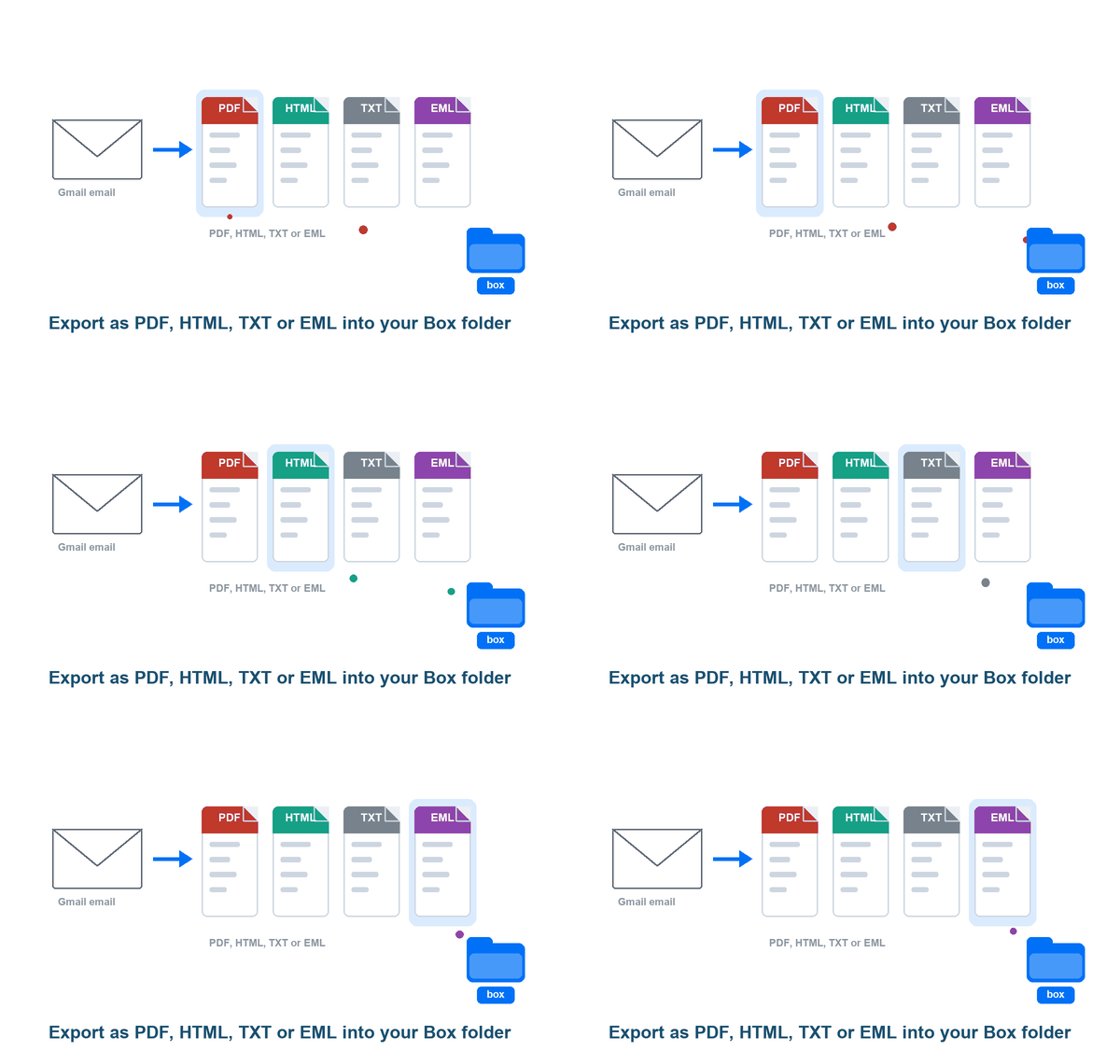
Export Gmail to PDF, HTML, TXT, or EML
Choose the format that fits your work:
- PDF: readable documents for sharing, printing, and archiving.
- HTML: email content with formatting.
- TXT: plain text for reference and further processing.
- EML: individual email files with their attachments embedded.
Combine Emails into One PDF or Save Separate Files
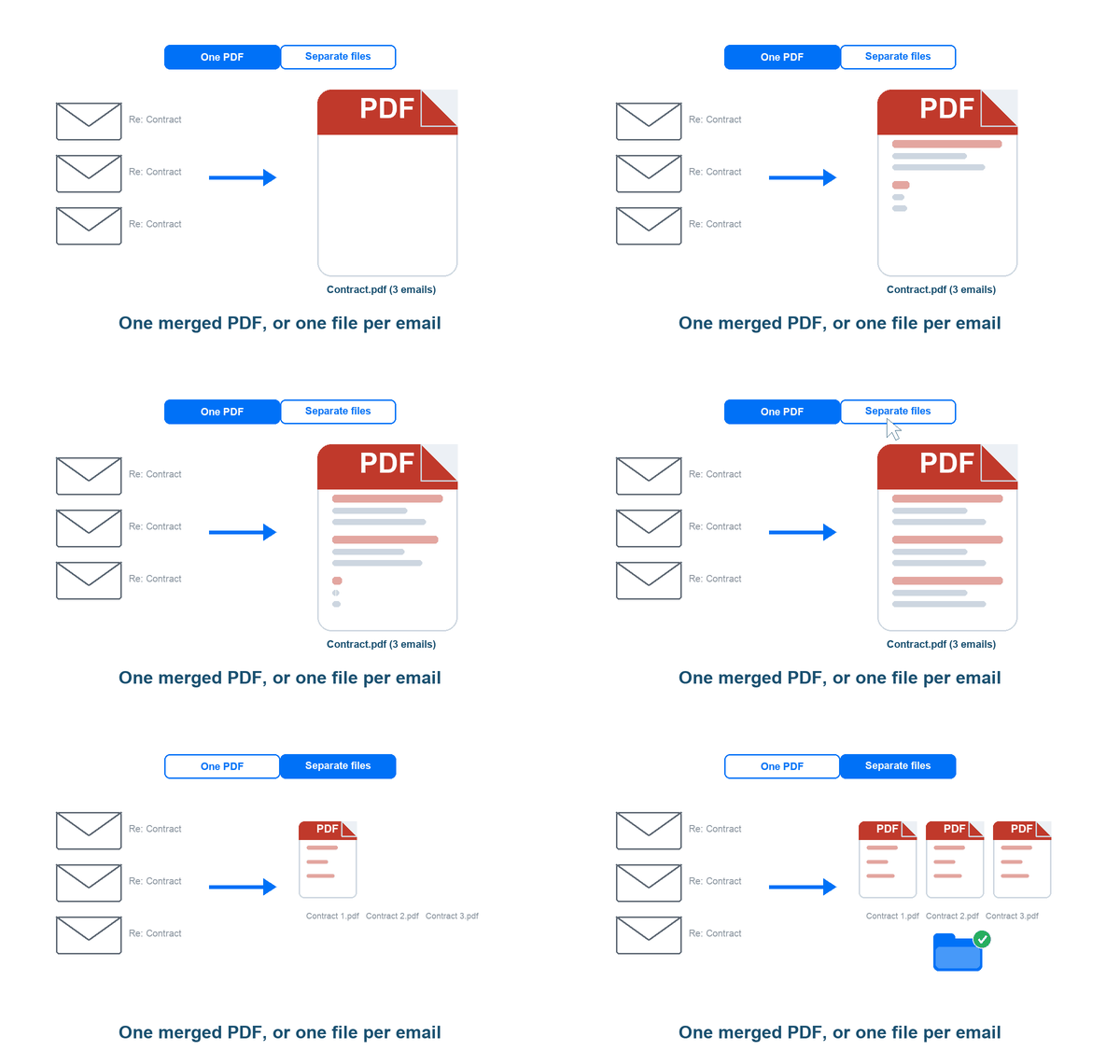
Package related messages into a single PDF, HTML, or TXT document, or keep each message or conversation in its own file. Enable conversation grouping to keep replies together and choose the order of the emails. EML exports remain separate email files.
Keep Email Attachments with Your Archive
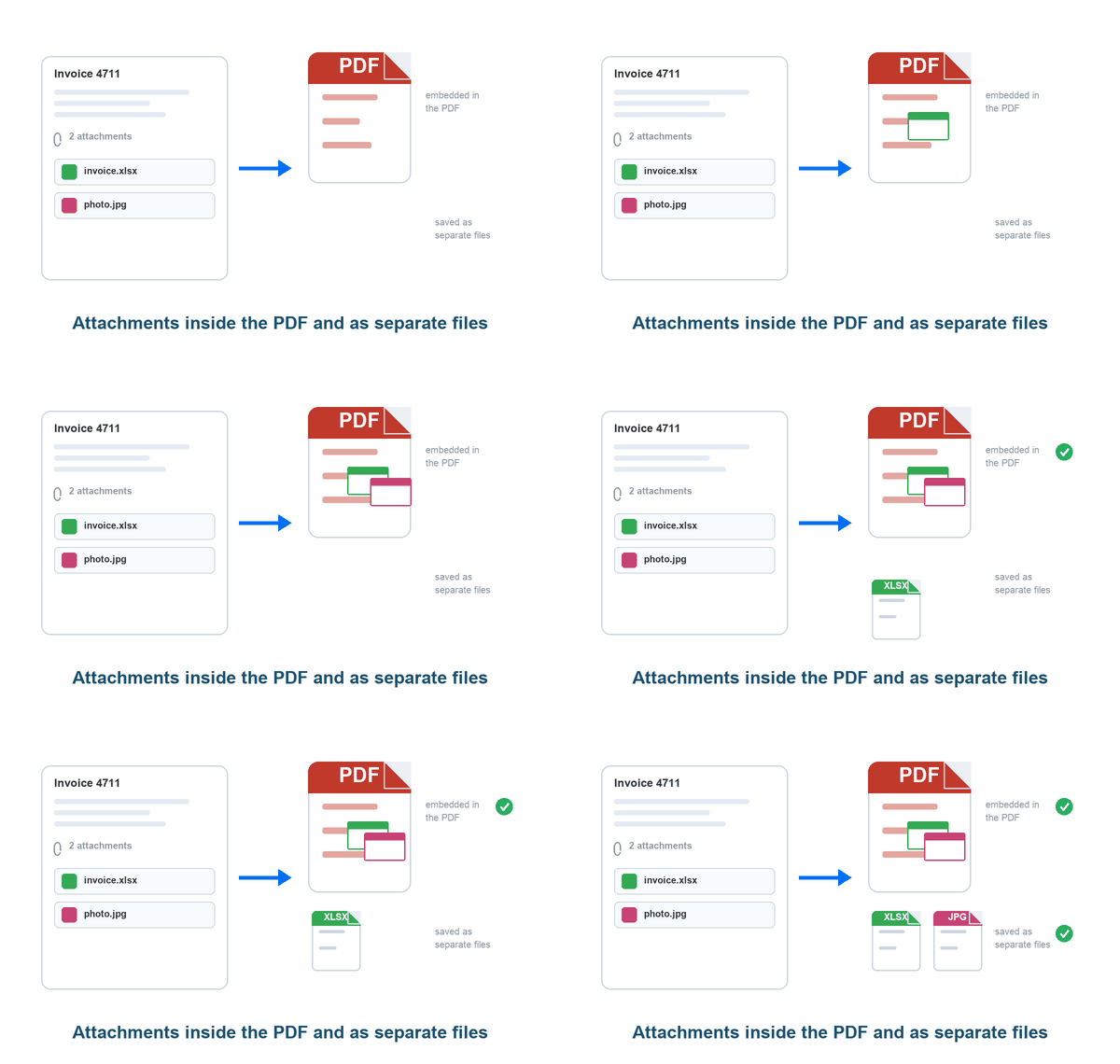
Save attachments as separate files alongside the exported emails, or include supported attachment content in the PDF so the conversation and its documents can be read together. For PDF exports, you can keep both the embedded content and separate attachment files. Choose the options that fit invoices, spreadsheets, contracts, and other email documents.
Save Only Gmail Attachments to Box
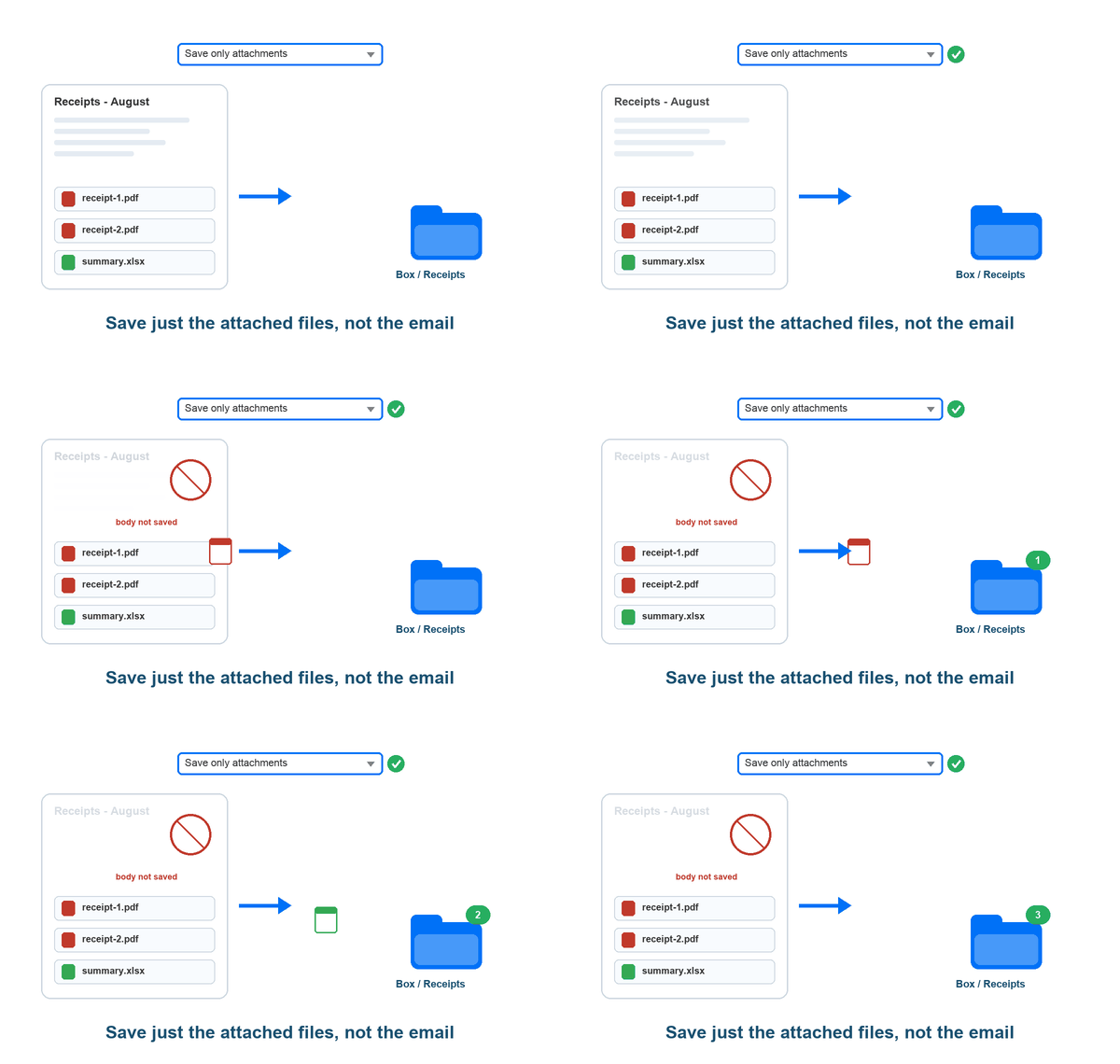
Need the attached files without a copy of the email body? Select Save only attachments to send the attachments to your Box folder as separate files. Use it for individual emails, selected messages, or a label-based archive to collect receipts, documents, and other files in one place.
Customize PDF Layout and Conversation Order
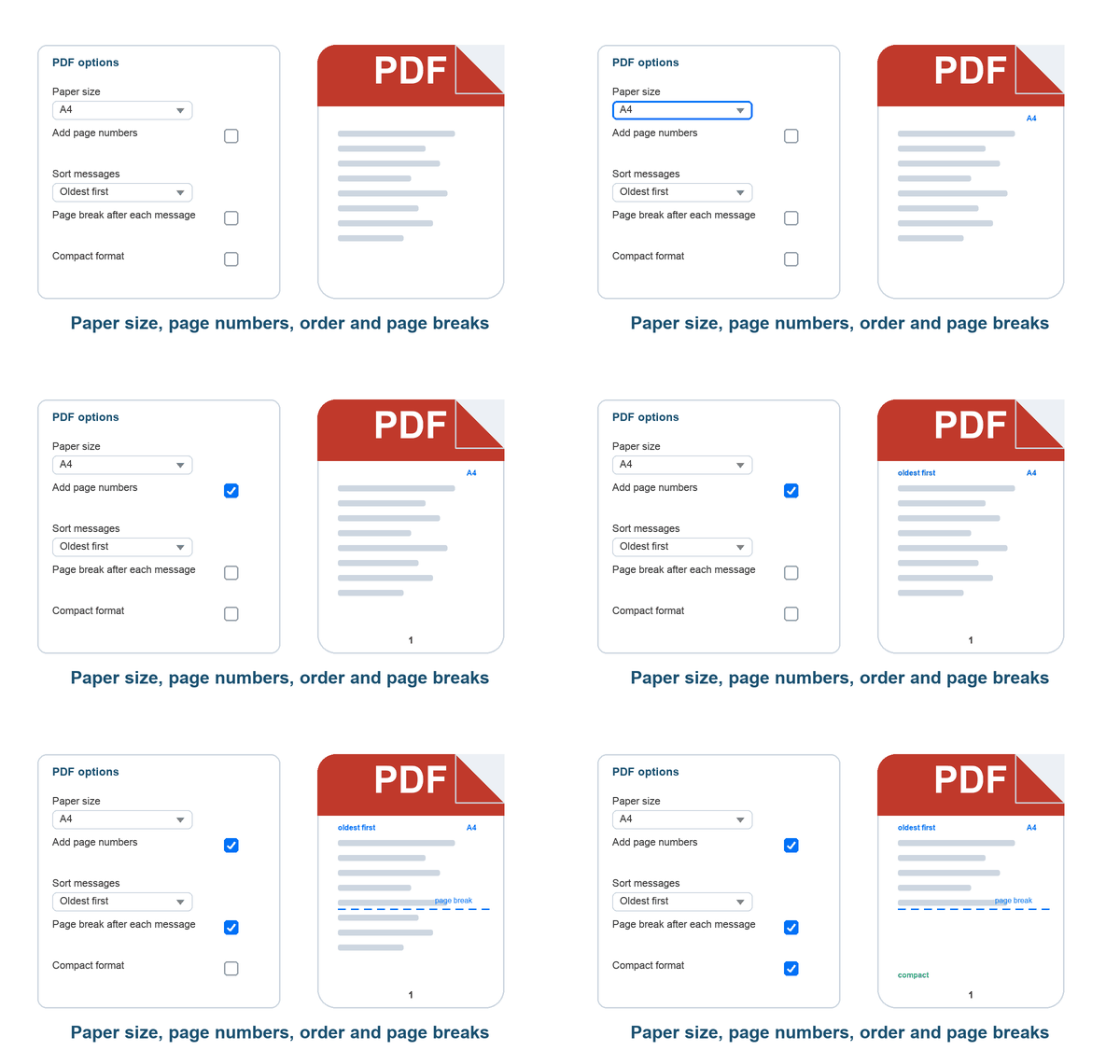
Choose the paper size, add page numbers, sort emails from oldest to newest or newest to oldest, and add page breaks between emails in a merged PDF. Compact formatting reduces repeated signatures, quoted replies, and other redundant content. Create a readable archive directly from Gmail without printing each message first.
Organize Saved Emails with Consistent File Names
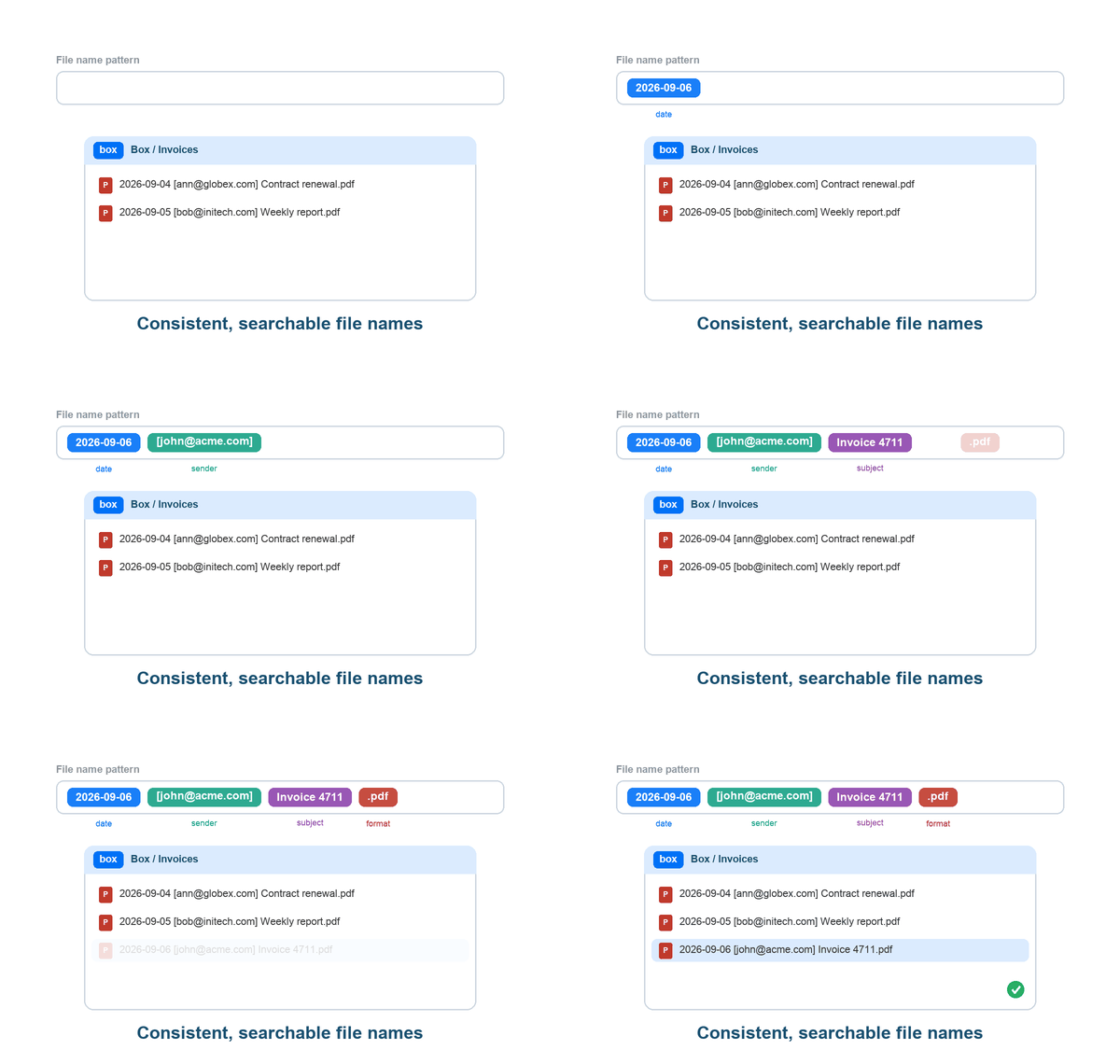
Choose email file-name patterns using the date, sender, recipient, and subject. Keep attachment names or include message details to make related files easier to recognize. Save your preferred naming and export settings for use across drag and drop, quick save, and batch exports.
Work with Box and Box Business Folders in Gmail
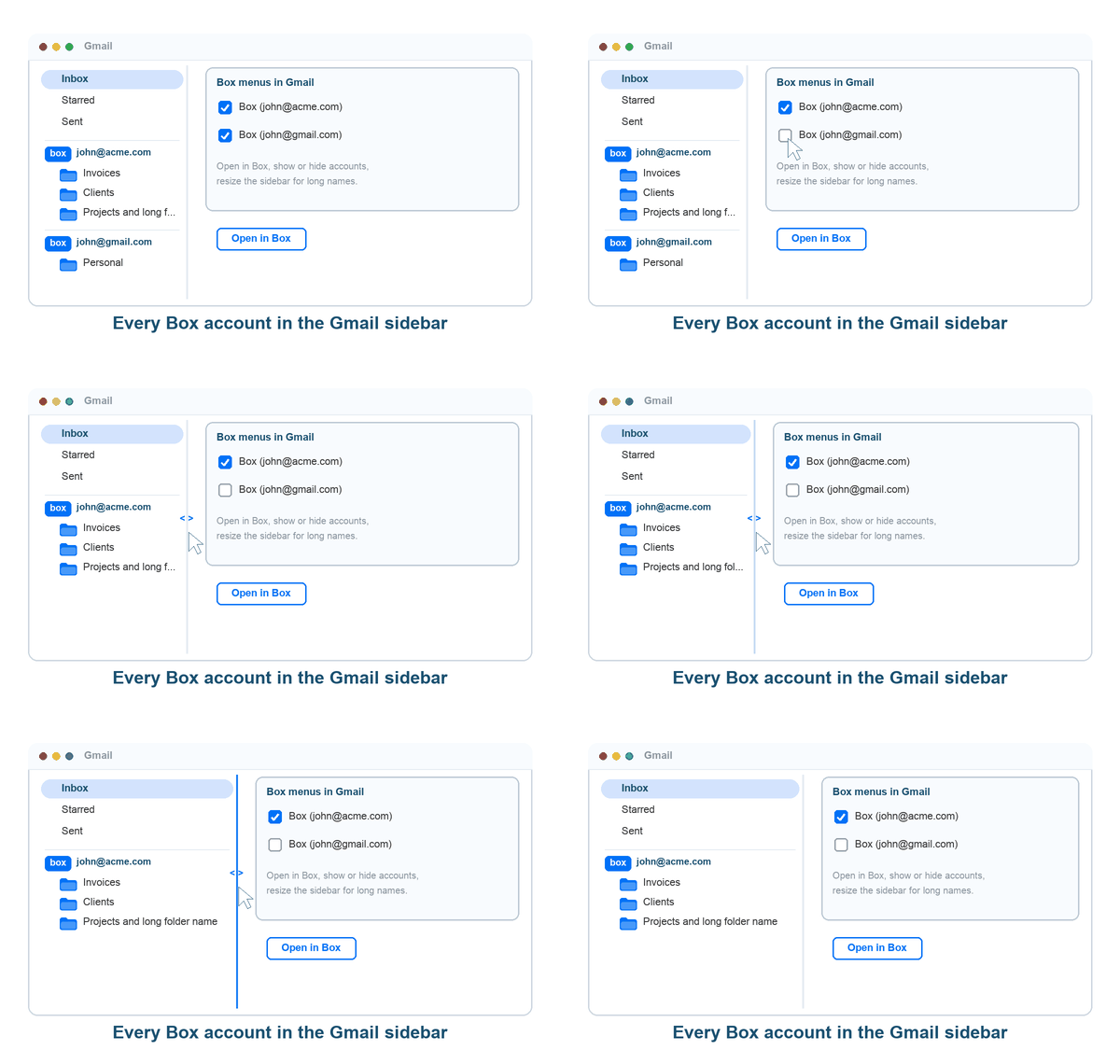
Browse folders from your connected Box accounts in the Gmail sidebar, open a folder in Box, and choose where each archive belongs. Keep work and personal accounts organized, show or hide account menus, and resize the Gmail sidebar to make longer folder names easier to read. Save to Box Business folders your team already uses, with access managed through Box.
Manage Save Settings and Monitor Autosave Jobs
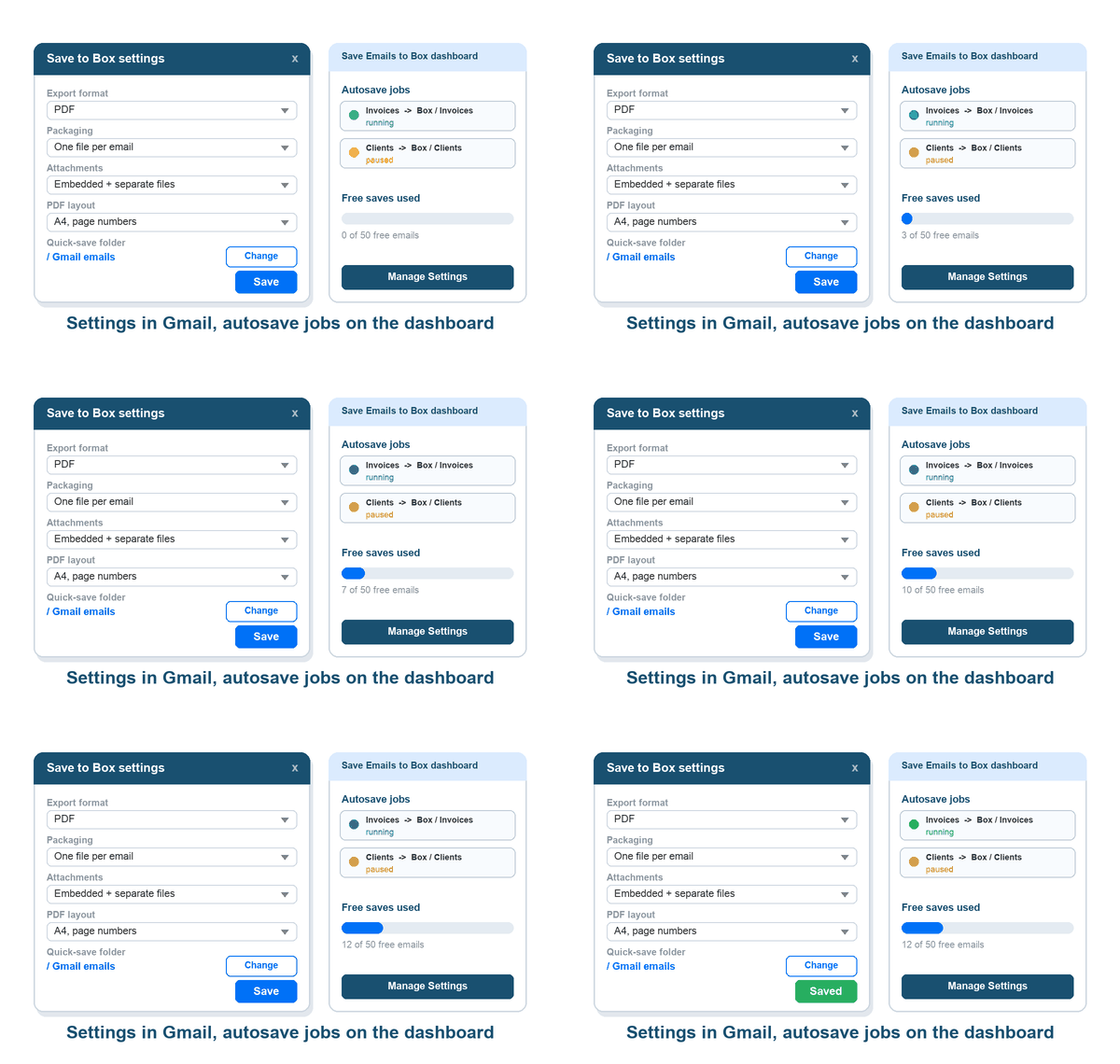
Set your preferred export format, packaging, attachments, PDF layout, and quick-save folder from Gmail or the settings page. Reuse recent save destinations and request an email when a batch save finishes. The Save Emails to Box dashboard lets you review running and paused autosave jobs, manage their settings, and see your free save usage.
Get Started with 50 Free Email Saves
Try Save Emails to Box with a free allowance of up to 50 emails. Explore drag and drop, quick save and sharing, multiple export formats, attachment options, and label archiving. Your usage is shown in Gmail and on the dashboard, so you can see when you are approaching the free limit.

Unlimited Email Saves with Premium
Upgrade for unlimited saves and archives to Box, including drag and drop, quick save, batch exports, and ongoing autosave. Premium also includes entire-account backup plus email and phone support. See the pricing page for plan details.
Keep Important Email Records Organized in Box
Collect Invoices and Receipts for Accounting
Save emailed invoices, receipts, and their attachments in the Box folder you share with your accountant. Connect a Gmail label for recurring records or drag individual emails into the folder when they arrive.
Keep Client and Project Conversations Together
Archive customer approvals, proposals, and project updates alongside the team's other documents in Box. Quick save an important conversation and share its link so colleagues can review the same record.
Organize HR and Employee Correspondence
Collect recruitment messages, employee correspondence, and attached documents in the appropriate Box folders. Use naming patterns and PDF options to keep the archive readable, and choose sharing access for the people who need it.
Prepare Email Records for Legal Review
Find correspondence by sender, date range, or Gmail label and export it to Box for review. Merge related emails into a chronological PDF, retain attachments, and share the saved records with your legal team using the appropriate Box access settings.